CCC · Drawpile (September 19, 2020)
CCC, Art ·This week, we’re going to be trying something new: a Drawpile (tutorial inside)! Drawpile can be best described as Google Docs for drawing. Basically, everyone’s on a single giant canvas where they can draw! We’ll be in the CCC voice channel on the U-Nerd-Ed Nations Discord at around 3:00pm eastern we’re will chat while we all doodle. Don’t worry if you don’t have a drawing tablet, or aren’t a great artist, we won’t judge in the slightest (most of us are using mice anyway). We’ll give you a rundown of how to set it up, and how to join, so don’t you worry about that either!
How to Join the Drawpile (Please Read)
To download Drawpile, go to their website and find their download page. We’re not certain that you need an account, but it certainly can’t hurt, so sign up while you’re there if you’d like.
Once it’s downloaded, you can install the program. Once installed, open it up. You’ll see the drawing tools and everything on the left side of the screen. Note that the task bar may cut the bottom of the screen off, at least on Windows computers. The best solution I found was to go to the “View” tab on the top of the screen and select “Full Screen” or hit the F11 button on your keyboard. You can also use the program windowed, and just make it shorter. Anyway, you can also add Avatars by going to the “Edit” tab, and clicking “Preferences” to bring up the Preferences window. The bottom option is “Avatars,” where you can click “Add…” to upload an image. You’ll be able to pick the avatar of your choice once you join the server.
To join the Drawpile session, click on the “Session” tab at the top of the screen, then click “Join…” top open the “Join a Session” window. At the bottom of this window, you’ll see a textbox that says “Enter a host address, session URL or room code to join a session:” just above it. This is where you’ll enter pub.drawpile.net. After that, you’ll want to find the “Comics Club Complete” server, and join with the password “CCC” in all caps.
Once you’ve joined the session, a dialogue will appear where you can enter a username, and pick your avatar for use in the Drawpile. Pick whichever name or image you like, but know that you can’t change it without leaving and coming back. Please try to remain identifiable to help others to know who you are. We strongly recommend the use of your name somewhere in the username, as a result. When you join, you’ll immediately be able to see what everyone’s up to, as well as the chat window. If you aren’t as comfortable speaking in the Discord, feel free to chat through the Drawpile chat.
We encourage everyone to use their own layers if possible. To make a new layer when you join, you can either click the “Layer” tab and then “New Layer” or you can hit Ctrl+Shift+Insert. This will make a new layer at the top of the layers tab (which should default to being somewhere on the bottom right of the screen, potentially behind another tab). You can then right-click to rename your layer, and then you can drag your layer to wherever you want below the “Officers Only” layer, or have an officer place it somewhere for you if you’re having trouble.
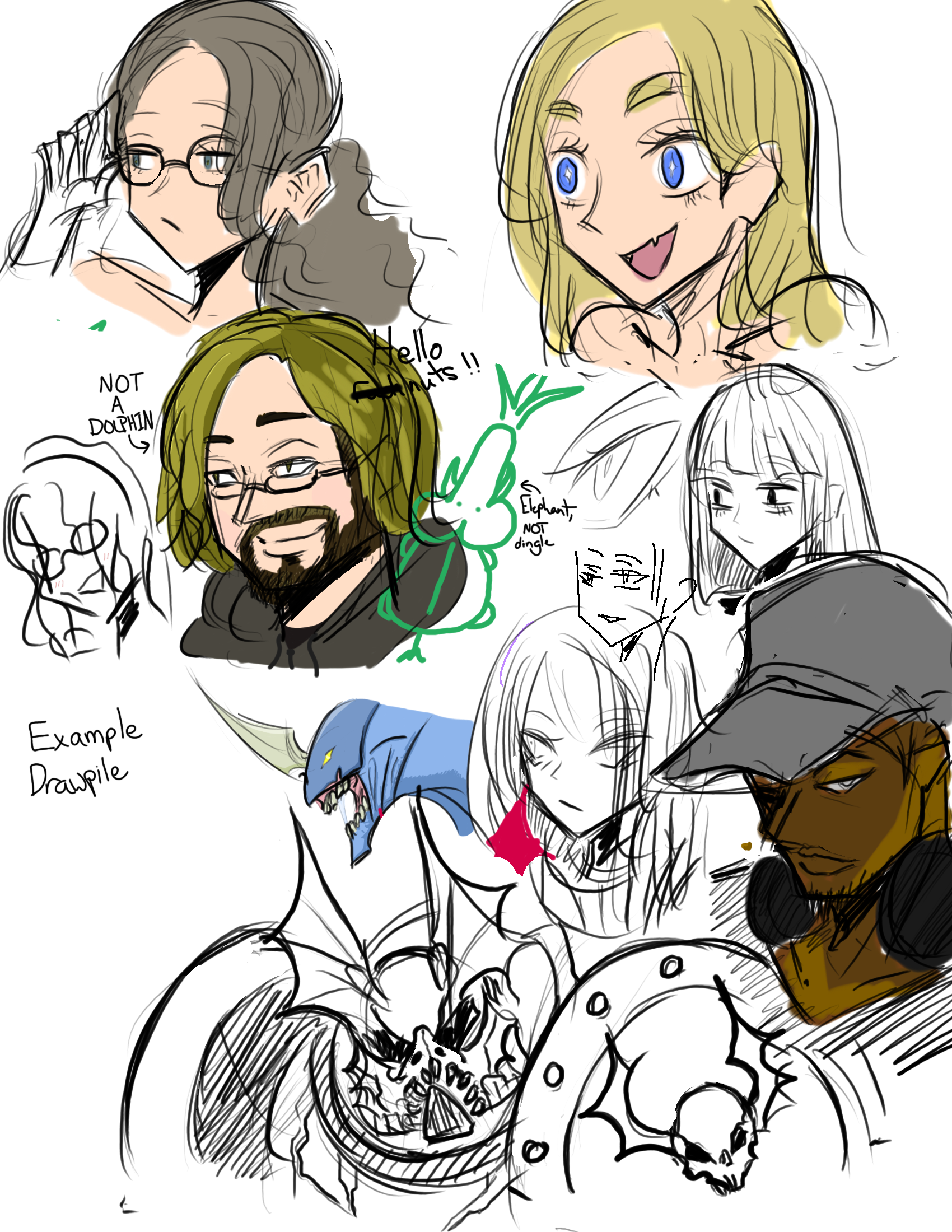
Below is a rough idea of what the final Drawpile could look like. Jordan, Linh, and Gwen all screwed around last night to get information for this tutorial!